We recommend building a budget whole-home smart security system around a hub with a siren, sensors on exterior doors, and motion detection along main indoor routes. Add cameras as funds allow. This approach gives you an alarm system that covers key entry paths while keeping optional equipment out of your first purchase.
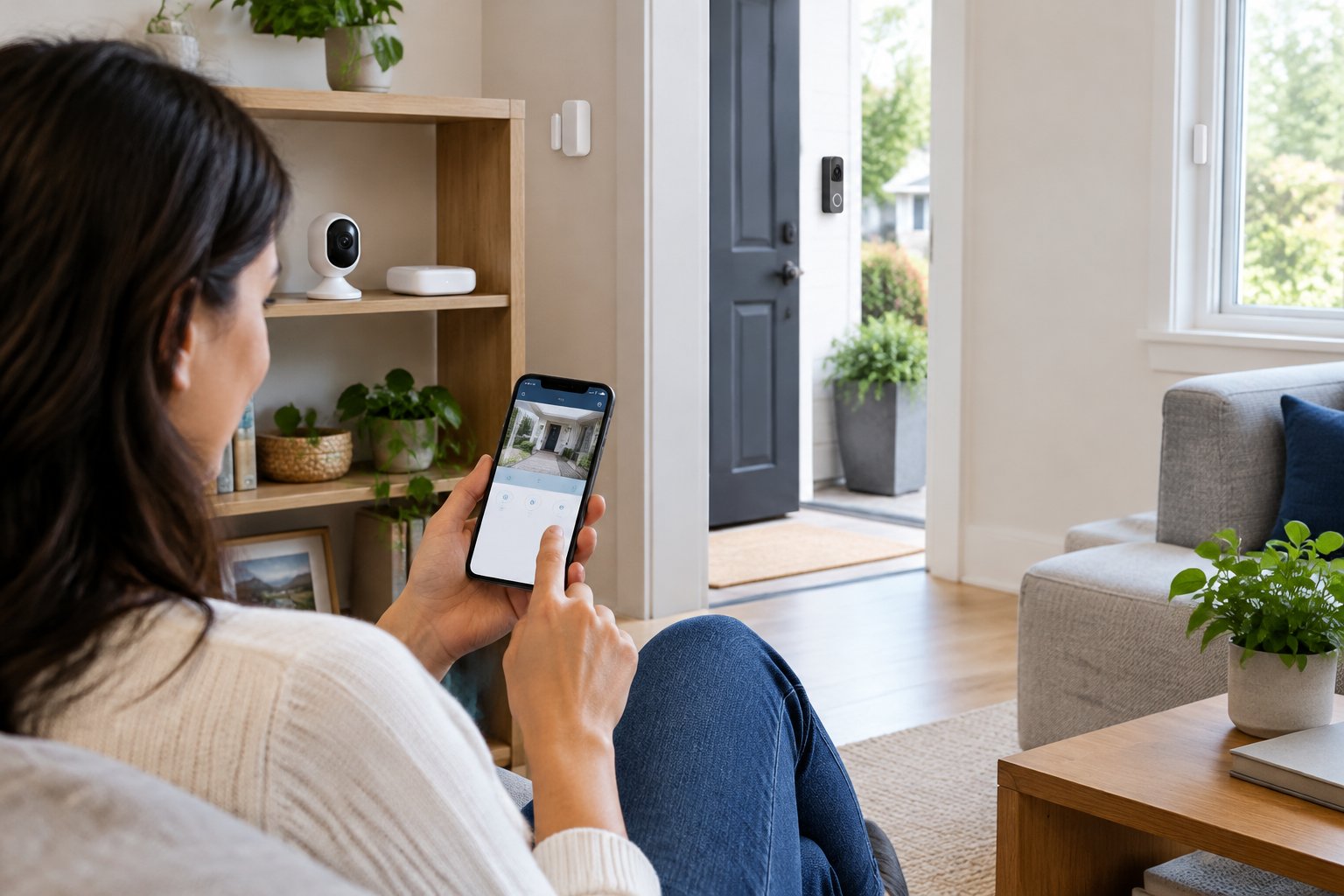
Our approach to smart home security starts with coverage and the cost of keeping it active. A DIY home security system saves installation labor, but subscriptions and extra sensors still affect what you spend. For a manageable do-it-yourself project, choose equipment that pairs through one alarm app and supports expansion.
Key Takeaways
- We prioritize entry sensors before extra cameras.
- We recommend comparing equipment costs with recurring fees.
- We treat testing and backup power as essential setup work.
Set Your Budget Around Essential Equipment and Ongoing Costs
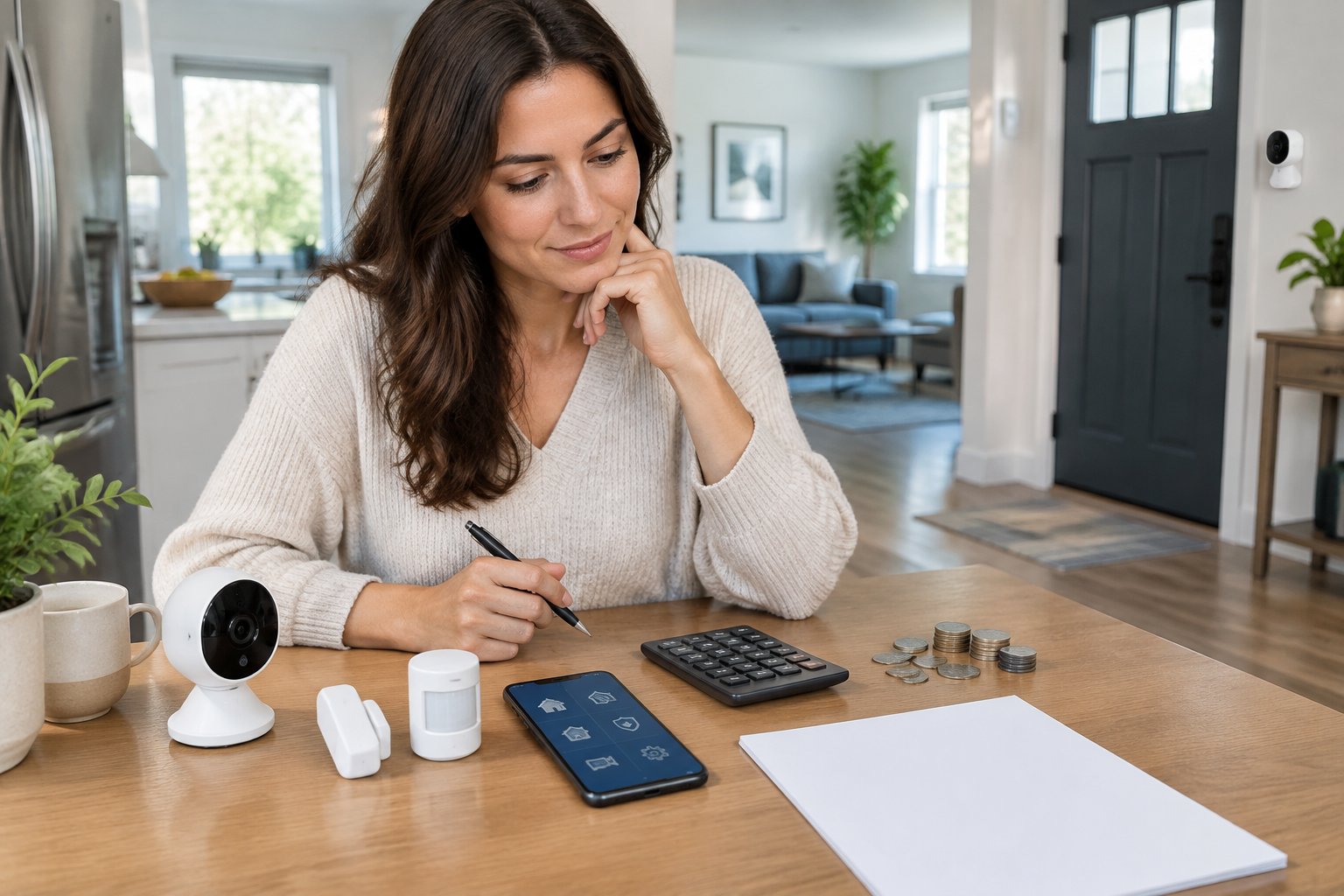
Our budget recommendation is to price the complete sensor layout and required services before choosing a starter kit. A small advertised bundle becomes more expensive when you add missing door contacts.
Build a shopping list with these groups:
- Core alarm: Hub, siren, keypad or other control method, and entry sensors.
- Indoor coverage: Motion detectors for main travel paths.
- Optional equipment: Cameras, video doorbell, leak sensors, and smart locks.
- Ongoing expenses: Monitoring, video storage, replacement batteries, and any backup service.
- Installation supplies: Approved adhesive, mounting hardware, and power accessories.
For each smart home security system, record the checkout price and the recurring cost after any trial ends. Add those charges across the same ownership period so the comparison stays fair.
We suggest keeping home security cameras as a separate budget line. That makes it easier to protect another accessible entry before paying for another view of an area already covered.
Map Your Entry Points and Prioritize Whole-Home Coverage
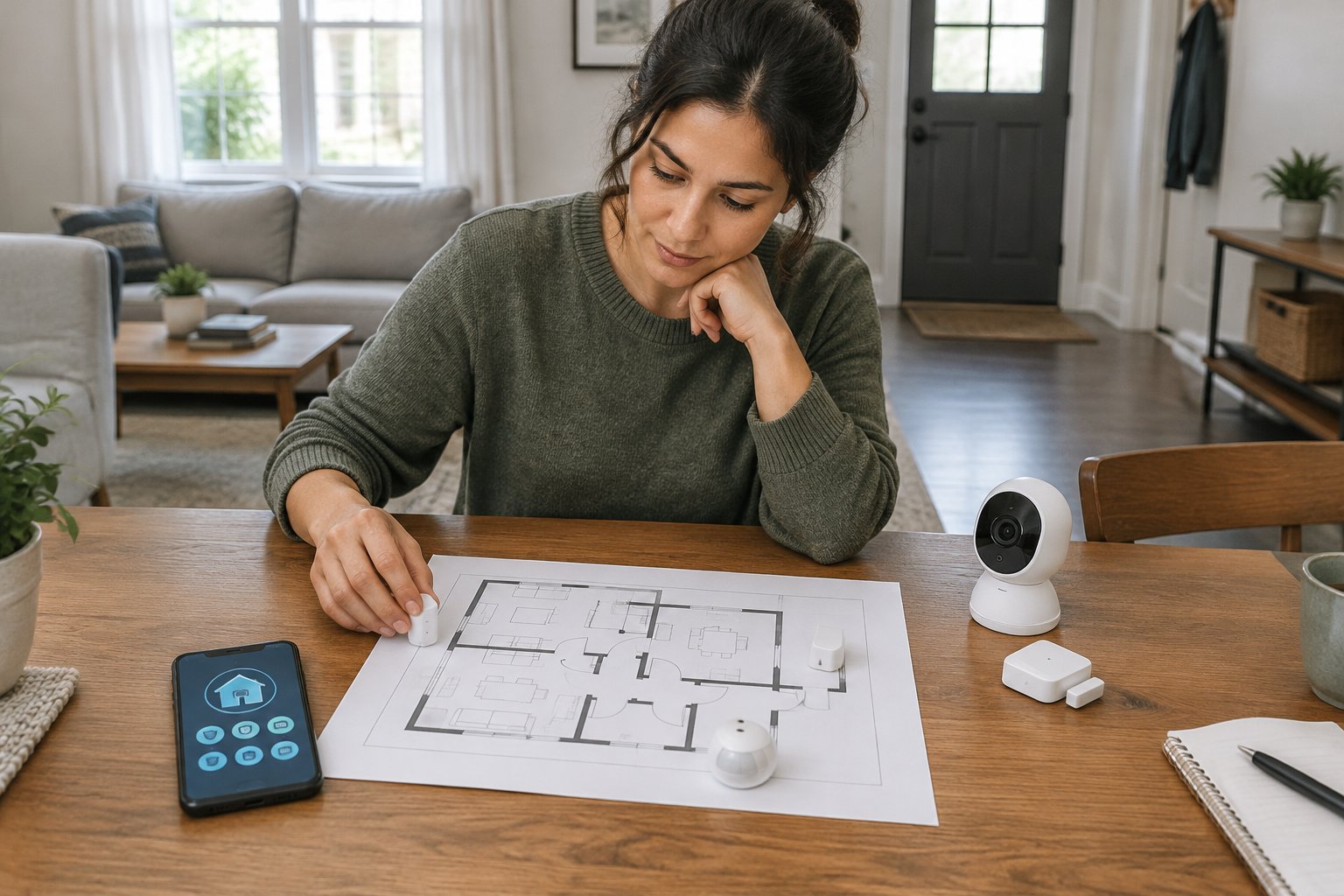
We recommend mapping every accessible opening before deciding how many sensors to buy. Whole-home coverage means accounting for entry routes throughout the property, including the basement and garage connection.
Sketch each floor and mark:
- Exterior doors, including sliding doors.
- The door between an attached garage and the house.
- Ground-level and other reachable windows.
- Hallways or stair routes an intruder would cross.
- Areas where pets move while the alarm is armed.
Assign door and window sensors to priority openings. Place motion sensors along indoor routes as a second layer, keeping occupied sleeping areas usable in Home or Night mode.
A contact sensor detects an opening. It does not detect someone breaking through fixed glass without moving the frame. Record that gap when planning coverage, and consider compatible glass-break detection where appropriate.
Our planning checklist also includes the condition of door locks and frames. Repair loose hardware before adding electronic access features.
Choose Between Self-Monitoring and Professional Monitoring
We recommend self-monitoring when you have a dependable plan for responding to alerts. Choose professional monitoring when you need a staffed response process. DIY installation supports either approach.
With self-monitoring, you receive alerts and decide what action to take. Confirm which notifications and remote controls remain available without a subscription. Set up a trusted backup contact who has agreed to respond when you are unavailable.
With 24/7 professional monitoring, a monitoring center receives supported alarm events and follows its response procedure. Ask about verification calls, emergency contacts, cancellation rules, and the events included in the plan.
Professional monitoring does not guarantee police attendance or arrival time. Check local alarm permit requirements and false-alarm fees before activation.
Compare Compatible DIY Kits Before Buying
We recommend comparing DIY home security systems using your finished equipment list and preferred monitoring method. SimpliSafe, Ring Alarm, Wyze, Abode, Cove, and Arlo belong on a shortlist, but check compatibility for each specific model before buying.
| Comparison point | SimpliSafe | Ring Alarm | Wyze | Abode | Cove | Arlo |
|---|---|---|---|---|---|---|
| Main shopping focus | Alarm packages | Alarm and cameras | Cameras and sensors | Alarm and automation | Monitored alarm | Alarm and cameras |
| Expansion to price | Entry sensors | Contacts and cameras | Sensors and cameras | Sensors and integrations | Added detectors | Sensors and cameras |
| Plan detail to check | Monitoring tier | Remote controls | Monitoring bundle | Automation access | Monitoring terms | Sensor features |
Treat compatibility as a checklist. Confirm the exact hub generation, supported sensor model, camera connection, and subscription requirements. Shared Wi-Fi or a shared voice assistant does not establish that a device will trigger the alarm.
For wireless security cameras, also check how they receive power and store recordings. “Wireless” describes different connections across products.
Before checkout, verify the return window and the cost of enough sensors for your floor plan. Save the feature and plan details attached to your order.
Install the Hub and Configure Network and Power Backup
Our recommended hub location is a protected indoor spot with reliable sensor reception and power. Keep it away from public view through windows and follow the maker’s placement instructions.
- Install the official app and create your account.
- Register the hub and apply available updates.
- Connect through Ethernet or supported Wi-Fi.
- Pair sensors temporarily and check reception at their planned locations.
- Confirm the hub’s backup battery is installed and charging.
- Activate cellular backup if supported and included in your chosen service.
Cellular backup keeps supported alarm communications working when home internet fails. It does not automatically provide internet service to cameras or other devices.
An uninterruptible power supply adds power support for the modem and router, subject to its load and battery capacity. Internet service still depends on the provider’s network.
Before replacing network equipment, check signal strength at the camera locations. When choosing a wireless router, prioritize reliable coverage where devices will operate, including outside walls.
Mount Entry Sensors and Position Motion Detectors
We recommend pairing and testing each sensor before attaching it permanently. Label devices by location, such as “Kitchen Window,” so alerts identify the opening clearly.
For door and window sensors:
- Clean and dry both mounting surfaces.
- Hold the sensor and magnet in position.
- Align them within the manufacturer’s stated gap.
- Open and close the door or window while watching its app status.
- Attach both pieces using approved adhesive or screws.
- Check that normal movement clears the hardware.
Metal frames deserve a temporary placement test because they interfere with some magnetic entry sensors. Use the manufacturer’s approved solution if the sensor fails to report reliably.
Position each motion detector at the specified mounting height. Aim motion sensors across likely walking routes and away from heating vents or direct sun.
Our placement advice for pet owners is to follow the model’s pet guidance closely. Furniture that lets an animal climb into the detection area changes how the sensor behaves, so include normal pet movement in your checks.
Add Cameras and a Video Doorbell Where They Matter Most
We recommend adding video at the busiest entrance and any poorly observed approach first. Each camera should provide a useful view that your existing equipment does not already cover.
A video doorbell combines visitor alerts with a view of the doorstep. Check the viewing angle for faces and packages, along with wiring, chime compatibility, and recording fees.
For outdoor cameras, confirm weather suitability and power access before mounting. If you need to mount an outdoor wireless camera without drilling, use a mount approved for the device’s weight and mounting surface.
Our camera setup checklist includes these checks:
- View the image during daylight and after dark.
- Test night vision with a person approaching.
- Keep infrared light clear of nearby walls and glass.
- Set activity zones around your property.
- Confirm that saved clips play back.
Turn off power before working on wired doorbell connections, and verify transformer requirements. Use a qualified electrician for unfamiliar wiring. Respect neighboring private spaces and check applicable audio-recording rules.
Connect Smart Home Devices and Secure Account Access
We recommend connecting optional smart home devices only after the alarm works on its own. Keep essential alarm functions available through the security system’s supported controls.
Alexa and Google Home support varies by device and action. Confirm whether an integration supports camera viewing, arming, or lighting routines before linking accounts.
Start with a low-risk routine, such as switching on an entrance light after a supported event. Keep automatic unlocking and disarming out of basic presence routines.
Secure access during setup:
- Use a unique password stored in a password manager.
- Enable multifactor authentication.
- Give household members separate accounts where supported.
- Limit guest permissions and remove expired access.
- Enable supported software updates.
- Protect the router’s administrator account.
A separate network for connected devices adds isolation when configured correctly. Preserve the local connections your chosen devices require, and avoid exposing cameras through router port forwarding.
Test Coverage, Adjust Alerts, and Plan Routine Maintenance
We recommend a full alarm test before relying on the system, followed by regular checks using the manufacturer’s schedule. Put professional monitoring into its approved test mode first to prevent an accidental dispatch request.
Work through a written checklist:
- Open every protected door and window.
- Walk across each motion sensor’s coverage area.
- Confirm Home mode permits normal indoor movement.
- Check entry delays at the doors you use.
- Verify the siren and phone notifications.
- Test supported internet-loss and power-loss behavior.
- Confirm the system returns to normal operation.
For cellular backup, follow the provider’s test procedure and confirm the expected status in the app. A backup indicator alone does not establish that every connected device stays online.
With self-monitoring, test notifications while your phone is locked and check its focus-mode settings. Keep intrusion warnings prominent while reducing routine camera motion notices.
Repeat coverage checks after moving furniture or changing network equipment. Clean camera lenses and replace batteries when the system reports low power.
Frequently Asked Questions
We recommend resolving rental permissions, outage behavior, and integration needs before committing to a kit. These details affect how you install and maintain the system.
Is a DIY home security system suitable for a rental?
We recommend removable sensors and approved non-drilling mounts for renters. Obtain permission before changing locks or wiring, and check whether adhesive mounting is allowed under your lease.
What keeps working during an internet outage?
We recommend checking the hub’s documented offline behavior before purchase. Local sensors and the siren operate without home internet on systems designed for that use. Remote alarm reporting requires an available communication path, such as active cellular backup.
Can Home Assistant manage a budget alarm setup?
We recommend Home Assistant for users comfortable maintaining integrations and troubleshooting automation. Confirm support for each exact device, and keep the alarm’s essential operation independent of optional routines.
Does self-monitoring qualify for an insurance discount?
Ask your insurer before counting a discount toward your budget. Eligibility depends on your policy and installed protection. The insurer might require a professional monitoring certificate.
Ashley Wells

Your trusted source for product reviews, decor inspiration, and expert tips. Ashley Wells helps you make informed choices and elevate your lifestyle. Discover the best products and decor solutions for your home. Follow Ashley Wells for the latest reviews and trends. Create your ultimate living spaces with her.